How to Connect a Security Camera to a TV
Table of Contents
Connecting a security camera to a TV allows for real-time monitoring on a larger screen, making it easier to keep an eye on your home or business. Whether you have a wired or wireless security camera, the setup process is straightforward. This guide will walk you through the necessary steps to connect your security camera to a TV efficiently.
Equipment Needed
To successfully connect a security camera to a TV, you will need the following:
- Security Camera: Ensure your camera has a compatible video output option (HDMI, RCA, VGA, or BNC).
- TV: Most modern TVs feature HDMI, RCA, or VGA input ports.
- Cables: Depending on the type of connection, you may need an HDMI, RCA, or VGA cable.
- Power Supply: Both the security camera and TV must be connected to a power source.
- Video Converter (if needed): If your camera and TV have different connection types, a video converter (e.g., BNC-to-HDMI) may be required.
Step-by-Step Guide
Step 1: Identify Connection Ports
Check the Security Camera:
Examine your security camera’s video output options. Common ports include:
- HDMI(High-Definition Multimedia Interface) for high-resolution output.
- RCA(composite cable with yellow, red, and white connectors for video and audio).
- VGA for analog video output, typically used with older monitors.
- BNC(Bayonet Neill–Concelman) connectors, are often found in analog security systems.
Check the TV:
Inspect the available input ports on your TV. Most modern TVs support HDMI, while older models may include RCA or VGA inputs.
Step 2: Choose the Appropriate Cable
- HDMI Cable: If both the camera and TV support HDMI, this is the best option for high-definition video.
- RCA Cable: Use if the camera and TV both have RCA ports. Match the color-coded connectors (yellow for video, red and white for audio).
- VGA Cable: Use for analog video transmission if your camera and TV have VGA ports.
- BNC to HDMI Converter: If your security camera has a BNC output and your TV only has HDMI, use a BNC-to-HDMI converter to make the connection.
Step 3: Connect the security Camera to the TV
Using an HDMI Cable:
- Plug one end of the HDMI cable into the camera’s HDMI output port.
- Connect the other end to the TV’s HDMI input port.
- Select the correct HDMI input source on your TV using the remote.
Using an RCA Cable:
- Connect the RCA cable to the camera’s RCA output ports (yellow for video, red/white for audio).
- Plug the other end into the corresponding RCA input ports on your TV.
- Switch your TV input source to AV or Composite.
Using a VGA Cable:
- Attach the VGA cable from the camera’s VGA output to the TV’s VGA input.
- Select VGA as the input source on your TV.
Using a BNC to HDMI Converter:
- Connect the camera’s BNC output to the converter’s input.
- Use an HDMI cable to connect the converter to the TV’s HDMI port.
- Switch the TV input to the corresponding HDMI port.
Step 4: Power Up the Devices
- Security Camera: Ensure it is plugged in and powered on.
- TV: Turn on the TV and select the appropriate input source (HDMI, RCA, or VGA) using the TV’s remote control.
Step 5: Adjust Settings (If Needed)
- Resolution Settings: Adjust the resolution on your security camera if the image appears distorted or unclear.
- Display Settings: Modify the brightness, contrast, and aspect ratio in the TV settings for optimal viewing.
Additional Tips
Use a Video Converter When Necessary
If your security camera and TV have incompatible ports, a video converter (such as BNC-to-HDMI) can bridge the connection.
Connecting Multiple Cameras to a TV
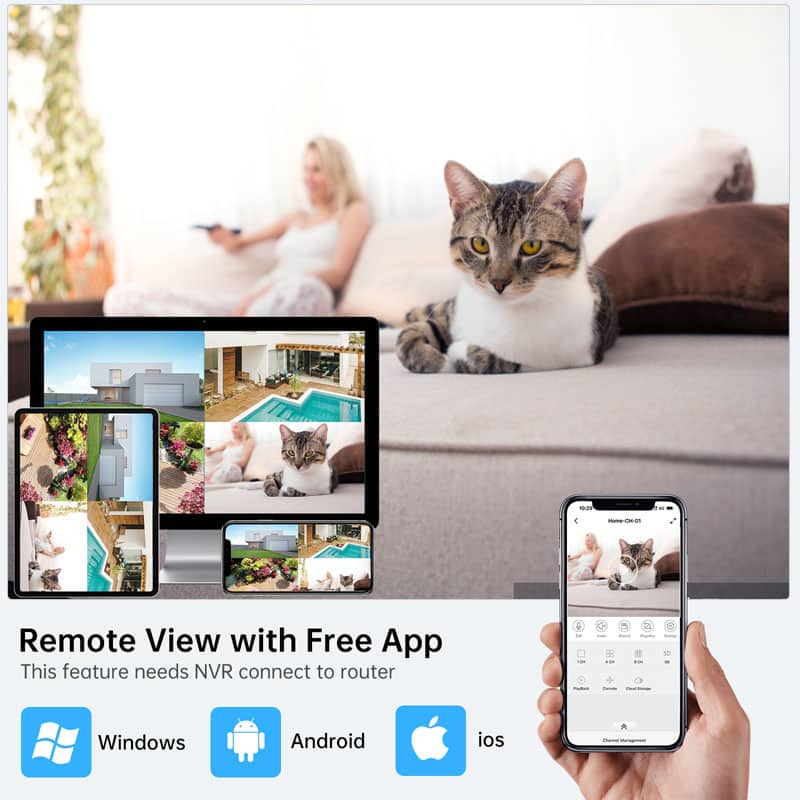
To display multiple security cameras on a single TV screen, use a DVR (Digital Video Recorder) or NVR (Network Video Recorder). These systems allow multiple security camera feeds to be displayed simultaneously.
Wireless Connection Options
If using a wireless security camera system, check if it supports streaming to a smart TV. Some cameras offer:
- Wi-Fi connectivity to cast video directly to a TV app.
- Screen mirroring from a mobile app to the TV.
- Bluetooth pairing for simplified wireless connections.
Conclusion
Connecting a security camera to a TV is a simple and effective way to monitor live footage on a larger screen. Whether using an HDMI, RCA, VGA cable, or a video converter, ensuring the correct setup will provide a clear, real-time video feed. For multi-camera setups, consider integrating a DVR/NVR system or using wireless streaming features for a seamless viewing experience. By following these steps, you can enhance your home or business security and monitor activity with ease.
Prime Day OFF
Until the End
-
Master Of Cleanliness: Visual Guide To Recognizing And Understanding Your Electric Pool Cleaners
-
Making the Right Choice for A Best Keypad Door Lock: A Guide Based on Material Consideration
-
Door Knob With Fingerprint Identification- The Future Of Home Security
-
Selecting the Ideal Digital Door Lock Style and Color for Your Abode
-
Evolution Of Security- Smart Door Key Lock
-
Mailbox Digital Lock- Reinventing Mail Security In The Digital Age
-
Exploring Alternative Unlocking Solutions - Smart Lock Fingerprint Cards and Wristbands
-
Touch Id Door Locks- Next-Generation Security At Your Fingertips
-
Smonet Home Door Lock- The Future Of Home Security
-
Harnessing The Power Of Technology- An Overview Of Smart Lock For Garage Door Introduction